![Shield Black Medium (2).png]](https://help.jamesedition.com/hs-fs/hubfs/Shield%20Black%20Medium%20(2).png?height=40&name=Shield%20Black%20Medium%20(2).png)
In your Business Account, go to My Listings › Add Listing › Import listings, then connect your CRM or submit your own feed. Depending on your CRM, your listings usually appear within minutes or within 24 hours, and we email you when they're live.
What does automatic import do?
Your listings come from your CRM through a feed, so you don't have to add or update them by hand. Once the feed is set up, new listings go live, price changes come through and sold listings are taken down automatically, all at the next feed update.
You can also open the Import listings window from the sidebar: Listing feed › Connect feed.
Who can set up automatic import from the Business Account?
Offices that don't have a feed yet. Each account has one feed. If you already have a feed and want to change it, for example a new feed URL or a different CRM, contact your JamesEdition Account Manager or support@jamesedition.com.
How do I connect my CRM?
-
In your Business Account, go to My Listings and click Add Listing.
-
Under Import listings automatically, click Import listings.

-
In the Connect my CRM tab, choose your CRM from the Popular list or type its name in Search your CRM.
-
Follow the steps shown for your CRM. Each CRM is different: some steps happen in your CRM (for example switching on JamesEdition and choosing which listings to send), and some CRMs ask you to paste a feed link or code, or to set your country, currency and area unit.
-
Finish with the button shown at the bottom, for example Connect & go live or I've activated JamesEdition.
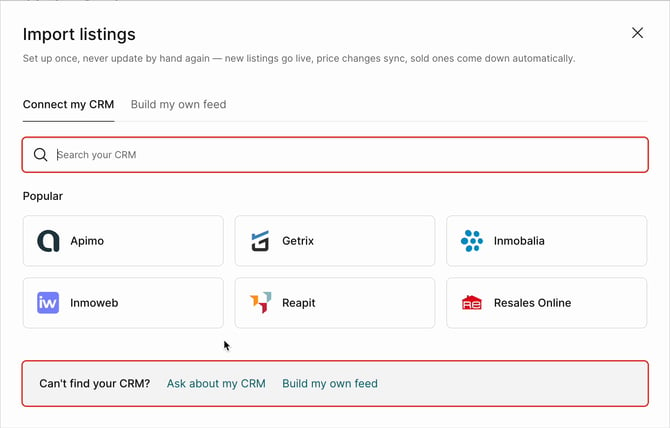
Under What happens next, the window shows how long your listings take to appear: usually within 1 to 5 minutes or within 24 hours, depending on your CRM. We email you when they're live.
For some CRMs, the button is Request connection. In that case our support team reaches out to confirm the details and sets up the connection with you.
Can I change my CRM after I've started connecting?
Yes, as long as nothing has been imported yet. On the Listing feed page, click Change import method, then Choose another CRM. Your pending connection is cancelled. Once listings have been imported, contact your Account Manager or support@jamesedition.com to change your feed.
My CRM isn't on the list. What can I do?
At the bottom of the Connect my CRM tab, under Can't find your CRM?, you have two options:
-
Ask about my CRM: contact our support team by live chat or email to ask whether your CRM can be connected.
-
Build my own feed: create a JamesEdition-format XML file yourself or with your web developer. The steps are below.
If your CRM isn't listed and you can't build a feed yourself, contact your JamesEdition Account Manager or support@jamesedition.com for help.
How do I build and submit my own feed?
-
In the Import listings window, open the Build my own feed tab.
-
Click Open feed documentation and build your XML file following the JamesEdition feed format.
-
Check the file with the Feed Validator, linked in the feed documentation. It shows the errors so you can fix them before you submit.
-
Host the file at a stable, publicly accessible URL or FTP path. We fetch the feed with the user agent "JamesEdition Feed Crawler 1.0". If your server filters traffic, allow-list that user agent. IP allow-listing won't work.
-
Paste your feed URL under Submit your feed URL and click Submit feed for validation.
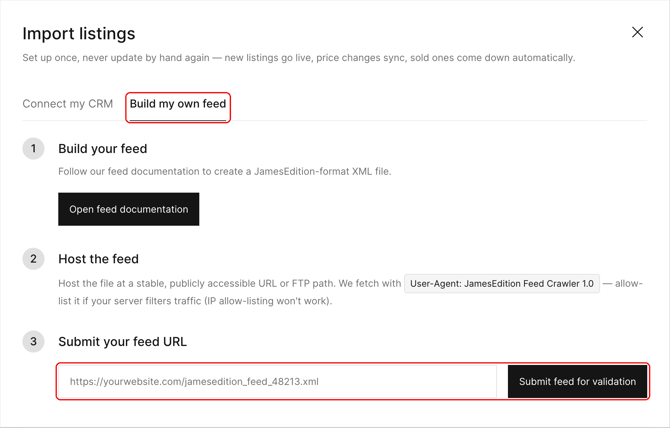
When you submit, we check right away that the URL can be reached and points to a feed file, not a web page. If your feed needs a login, include it in the URL, for example https://user:password@example.com/feed.xml. If the check passes, the first import starts straight away and your listings usually appear within 1 to 5 minutes. Your Business Account then shows the import results, including any listings that failed and why.
What happens after my feed is live?
Changes you make in your CRM appear on JamesEdition at the next feed update, not right away. For how updates, manual edits and the padlock work, see How does my CRM feed work on JamesEdition?
What if my listings don't appear?
First check that the setup on your CRM side is complete and that your listings are selected for JamesEdition. For the full checklist, see Why aren't my CRM feed listings showing on JamesEdition?
Still need help?
Contact us at support@jamesedition.com.