![Shield Black Medium (2).png]](https://help.jamesedition.com/hs-fs/hubfs/Shield%20Black%20Medium%20(2).png?height=40&name=Shield%20Black%20Medium%20(2).png)
Want to publish your listings on JamesEdition automatically using an XML feed?
There are two ways to automatically share your listings/properties:
-
Share an XML feed using JamesEdition format. If you want to build your own feed, please follow these instructions to comply with the JamesEdition format.
After this:
-
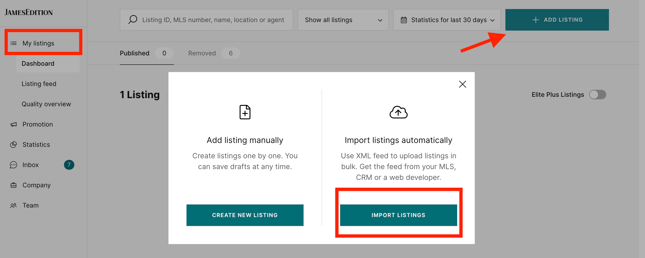
In your Business account, go to the My Listings section
-
Click the Add Listings button on the right
-
Then choose option Import Listings Automatically and click the Import Listings button
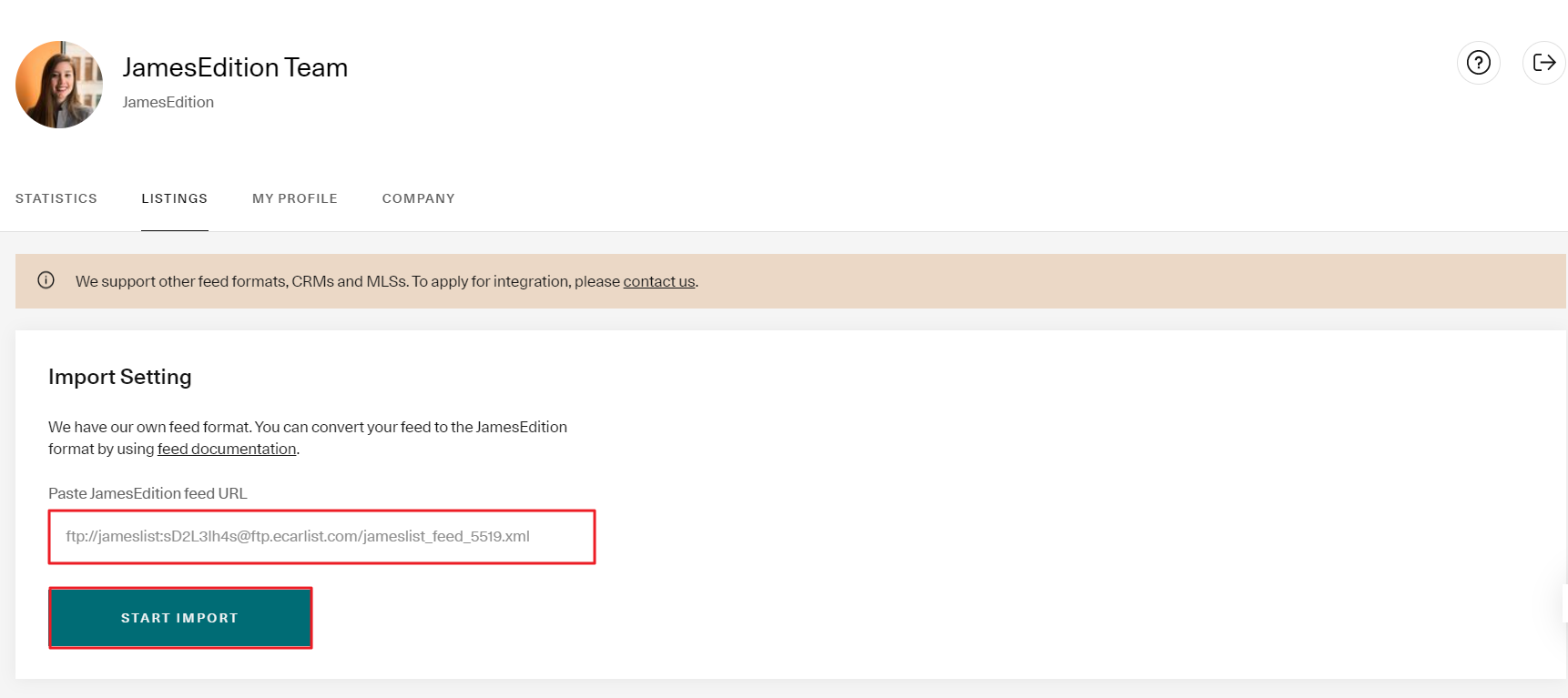
4. Paste the JamesEdition feed URL and click the Start Import button
5. Share an XML feed provided by your CRM system or MLS. The portal supports most international providers. Feel free to contact us for more information on the list of CRM/MLS systems we work with.
How to verify your listings imported correctly?
After setting up your feed, here is how to confirm everything is working:
- Check your Listings page. Log in to your Business Account and go to Listings. Imported listings will appear with their status (Active, Inactive, Refused, etc.). If you see no listings at all, your feed may not be connected — double-check the feed URL and contact support.
- Compare counts. Count the listings in your feed and compare with the number shown in your dashboard. A small difference is normal (listings may be filtered by purpose, type, minimum price, or missing required fields), but a large gap means something needs attention.
- Check listing details. Open a few imported listings and verify that the price, photos, description, and location match what is in your CRM. If data looks outdated, your CRM may not be pushing updates— check with your CRM provider.
- Look for refused listings. Apply a Refused filter in your listing dashboard. Refused listings include a reason (e.g. price below minimum, commercial purpose, etc.). Fix the issue in your CRM and the listing will be re-evaluated on the next sync.
- Allow time for the first sync. After connecting a new feed, it can take up to 24 hours for all listings to appear. Subsequent syncs happen automatically.
Supported feed formats and CRM providers:
- Verified feed formats (from production import pipeline): generic XML (JamesEdition format), Apimo JSON API, Kyero XML, OpenImmo XML, Idealista JSON, Propspace XML, Ego XML.
- Most widely used CRM integrations on JamesEdition today (by active feed count, production data, June 2026):
Apimo • EGO •Inmovilla • Proppy / CASAFARI • Inmoweb • Constellation Data Labs • Iarts Real Status • Witei • X-IMO • InmoEnter • Inmoba / Inmobalia • ReSales Online • 1001Portales • Apex27 • Anywhere (ex-Realogy) • Ubiflow • ORPI • Propspace • Idealista • Reapit • Hektor/Optima-CRM • OnOffice • Real Status
Don't see your CRM listed? Contact us at support@jamesedition.com, we work with most international providers and can check compatibility.
Troubleshooting Common Feed Issues
|
Issue |
Possible cause |
Solution |
|---|---|---|
|
Listings not appearing after feed setup |
Feed URL not accessible, or required fields missing |
Test your feed URL in a browser to confirm it returns data. Ensure every listing includes the required fields |
|
Feed hasn't updated in over 24 hours |
Feed URL changed, or your CRM stopped sending data |
Check with your CRM provider that the feed is still active. If the URL changed, contact support to update it |
|
Some listings imported but others are missing |
Individual listings failed validation (e.g. price below minimum) |
The most common rejection reasons are missing required fields or prices below the category minimum. Contact support with the listing references and we can check the rejection log. |
|
Listing data outdated or incorrect |
Feed sync delay or data not saved in CRM |
Confirm the data in your CRM, then wait for the next sync. If it persists, contact support |
How to Update, Pause, Replace, or Deactivate Your Feed
If you've already set up an XML feed and need to change the URL — for example, because you switched CRM providers, changed your feed hosting, need to correct a URL, or If you need to temporarily stop your feed import:
- Contact us at support@jamesedition.com with your Business Account details ( company's name, old/new XML feed, any specific instructions, etc.)
- We'll confirm once the change is applied