![Shield Black Medium (2).png]](https://help.jamesedition.com/hs-fs/hubfs/Shield%20Black%20Medium%20(2).png?height=40&name=Shield%20Black%20Medium%20(2).png)
Go to My Listings, click Add Listing, then Create New Listing under Add listing manually. Select a category and fill in the form. Then click Publish.
How do I add a listing?
-
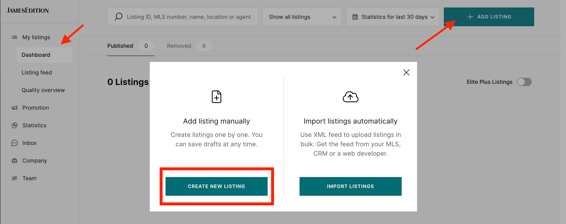
In your Business Account, go to My Listings.
-
Click Add Listing on the right.
-
Under Add listing manually, click Create New Listing.
-
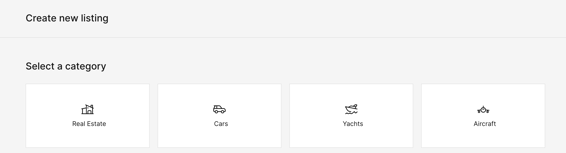
Select the category: Real Estate, Cars, Yachts or Aircraft. You can't change the category after the listing is created.
-
Fill in the form sections described below, then click Publish. To finish later, click Save as Draft (see How do I save and restore a draft listing?).
What information should I add to each section of the listing form?
-
Property overview: Add a clear, descriptive headline and a detailed property description. Include relevant details to help buyers discover your listing through search.
-
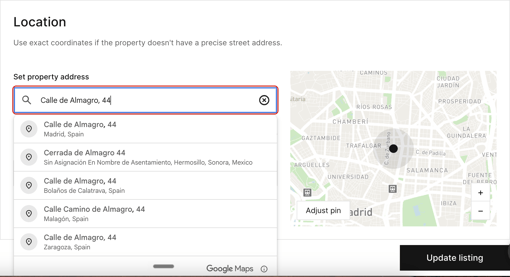
Location: Enter the address and select the correct suggestion from the dropdown. The map pin will appear automatically, but you can also enter coordinates or adjust it manually. Choose city level to keep the exact address private, or street level to show the precise location. See Why is my listing's map pin in the wrong place?
-
Pricing: Choose Show price or Hide price. For real estate, selecting Hide price displays "Price on request" (P.O.R.), even if you've entered a price. If a price is entered, the listing will still appear in the corresponding price-filtered searches. For other categories, leaving the price field empty displays P.O.R.
-
Basic details: Select the property type and enter the number of bedrooms, bathrooms, floors, and living and land areas. Choose your preferred measurement units; buyers can change these in their settings.
-
Features (real estate only): Select the property's amenities under View, Outdoor, Indoor, and Lot. Buyers use these features to filter search results, so only select those that apply to your property.
-
Photos: Click Upload Photos and add at least two landscape (horizontal) images. Drag and drop to reorder them. The first image becomes your cover photo. For recommended sizes and resolution, see What is the Listing Quality Index and how to increase it?
-
Videos and virtual tours: Add a public YouTube, Vimeo, or Brightcove video, or a supported virtual tour such as Matterport or My360. You can find the full list of supported providers in the listing form. Make sure your videos are set to public, otherwise they can't be added. See How do I add a virtual tour to my listing?
-
Leads assignment: Choose which agent or email address should receive enquiries for the listing. By default, leads go to your company's primary email, which you can update in the Company section. You can manage agents in Team. See How do I add agents to my listings?
-
Additional information: Optionally, add your license number or internal listing reference to help organize your listings.
Can I change the category of a listing?
No. If you chose the wrong category, create a new listing in the right category and unpublish the old one, or contact us and we will remove it.
Where do I add a parcel or cadastral number?
There is no separate field. Add it to the description, for example on the last line: "Cadastral reference: 1234567AB1234C0001XY". For listings from a CRM feed, add it to the description in your CRM.
Is there a keywords field?
No. Buyers find listings by location, filters and features. Select all relevant features and write a detailed description.
Does this work the same for cars, yachts and other categories?
Yes. These steps show the Real Estate category. The process is the same for all other categories.
Still need help?
Contact us at support@jamesedition.com.